Winedering’s search engine is optimized to help travel professional navigate over 6,000 global experiences in seconds. In this section we'll see how to use filters in the most efficient way.
Accessing the Catalog
Log in to your Partner Portal. From the dashboard, click on “Start searching and filtering experiences” or select “Search and export experiences” from the left menu.
Search by Geography
You can locate experiences geographically in different ways.
By Place
Enter specific regions or cities (e.g., Tuscany, Umbria, Florence) to see all available products in those areas. You can select multiple destinations at once.
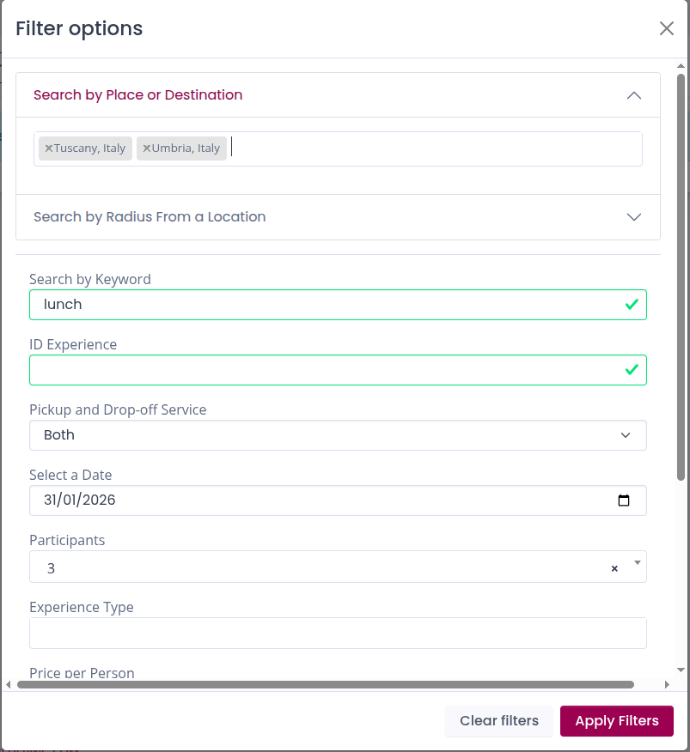
TIPS
When you're programming a package or building a tour, you can also search for Country if you want to have a complete overlook of the portfolio offer of Winedering in that specific state.
In case you're writing the name of a specific place and the system does not give you results, please try to add the name of the country. For example: "Alba, Italy" to search for the place of Alba in Piedmont.
If you can’t find a destination, click on “Contact your Account Manager” and let us know what you’re looking for.
BY DESTINATION:
You can search for experiences based on WINE REGIONS.
Wine regions are areas that do not necessarily belong to a geographic set of places, but include different small towns, villages and ares that are famous or recognizable for being part of that destinations. Some example of wine destinations you can search on winedering: Langhe, Valpolicella, Rioja, Penedès, Dão, Douro and more.
TIPS
This tool allows you to design wine-focused itineraries that go beyond administrative boundaries.
Currently, Winedering covers destinations only in Europe. Destinations outside the EU may not appear in search results.
If you cannot find a wine region you're looking for, click on the the Contact Your Account Manager button (on the right bottom of the portal page) to advise us and indicate the wine region you can't find.
BY RADIUS FROM A LOCATION
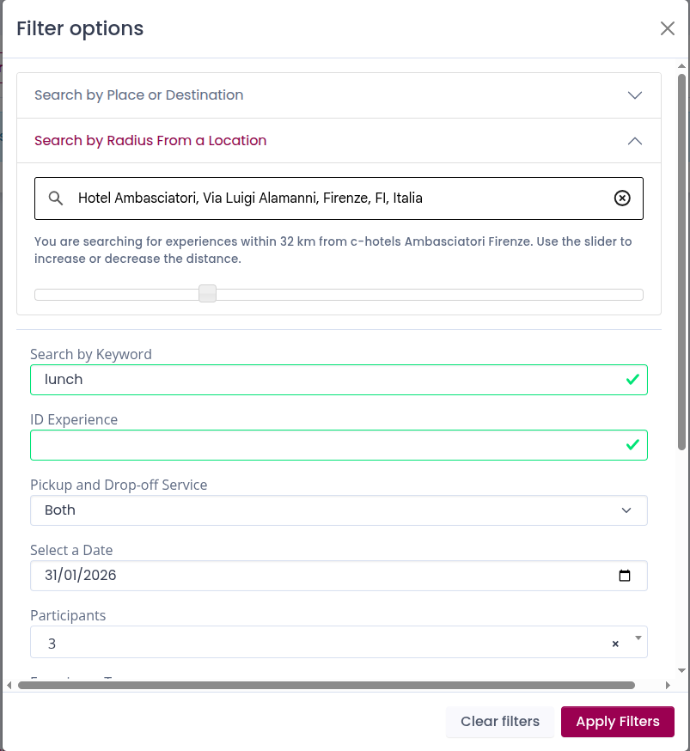
You can search by exact address (hotel, villa or accommodation, restaurant) and then adjust the radius using the slider. This tool is Ideal when your client is staying in one location and you need nearby experiences.
Please note distances here are intended in km.
Keywords
If you're looking for specific features of food and wine experiences, you can use the "Search by Keyword". Among the keywords you may use: "lunch", "dinner", "cooking class", "blind tasting", "hands on", "picnic" or any other word you think could be related to that food and wine experience.
You can search up to 3 keywords per search; look at 2 examples here below:

ID Experience
Every experience on Winedering has its own ID. This is the "Winedering Experience code", it is not your internal code.
If you've already searched activities and you've saved your favorite ones, this "id experience" filter will help you find the activity in the fastest way
Pick Up and Drop-Off Service
Experiences on Winedering may include a pick up and drop off service. In case you're looking for a private pick up and drop-off in a specific location
-
Search for “Yes” to see experiences with private pick-up
-
Search for “No” if it’s not required
-
Use “Both” to explore all available options
TIPS:
When wine tours do NOT have a Private pick up and drop-off available, it means that the system will give you options where transfer is included with departures at specific meeting points.
Select a Date
This filter is not mandatory: you can skip if if you're programming a tour without specific dates and you want to have ideas of quotations and activities available.
If you already have a specific date that is certain for the activity you're looking for, you can provide it here.
TIPS:
- You can search for experiences within 365 days from today
- At the moment you can exclusively pick up one date, not a specific range of dates ("from" - "to")
Participants
This filter is not mandatory. If you do not have an exact number you can skip it, but if you do have it, you can insert the proper number of participants.
The maximum number of participants selectable is 99. If you have to add CHILDREN, please consider them as PARTICIPANTS here. You'll be then able to specify them in the booking.
This filter helps you avoid proposing experiences that cannot accommodate your group size.
TIPS
If you're looking for SOLO TRAVELER experiences (1 participant), you can use this filter by inserting 1 participant only. However please consider that many suppliers work with a minimum of 2 participants.
If you're looking for experiences with more than 99 participants, or if you find No solutions, please click on the Contact your support manager button. We'll immediately control the opportunity to have the experience to be bookable for 1 person.
Experience Type
You can choose between two types of experiences.
Wine tastings
are intended as single activities taking place in a Winery or a wine bar.
Wine Tours
include at least 2 activities (can be a transfer, walking tour or more). If you leave the space empty the system will search for both.
Price per person
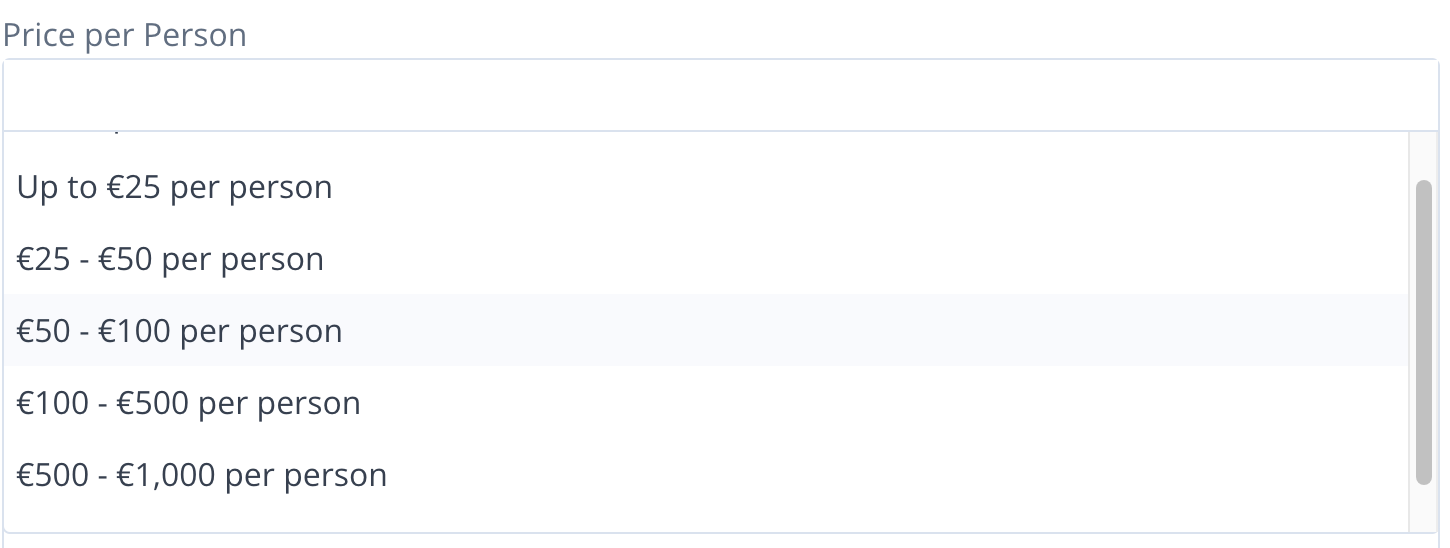
In case you have a specific budget for the experiences you can add your targeted idea by adding the filters:
Duration
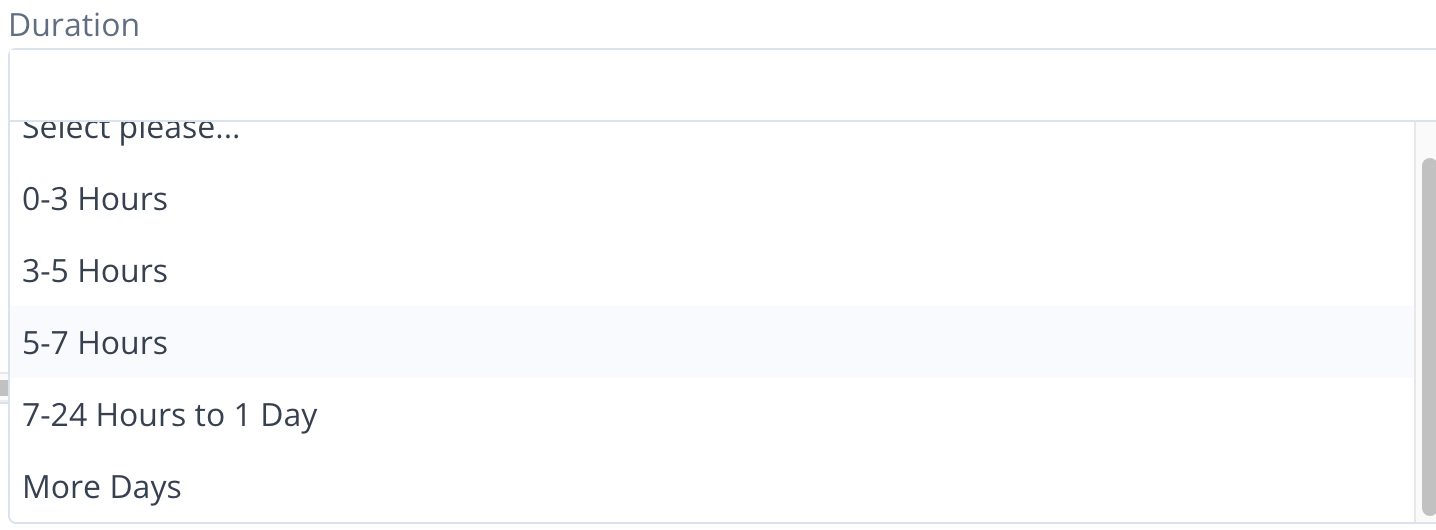
If the food and wine experience you're looking for has to take place within a certain amount of time (because your customer is on a cruise or on a transfer day, for example), you can easily establish the length by selecting your choice:
Language
This filter allows you to search only for the experiences where the tour can be booked in that language
You can add as many languages as you want.
APPLY or CLEAR FILTERS
Once you've completed your filters list, you can proceed and click on APPLY FILTERS. The system will then give you all the results belonging to those filters. Once you apply filters this is what you'll see:
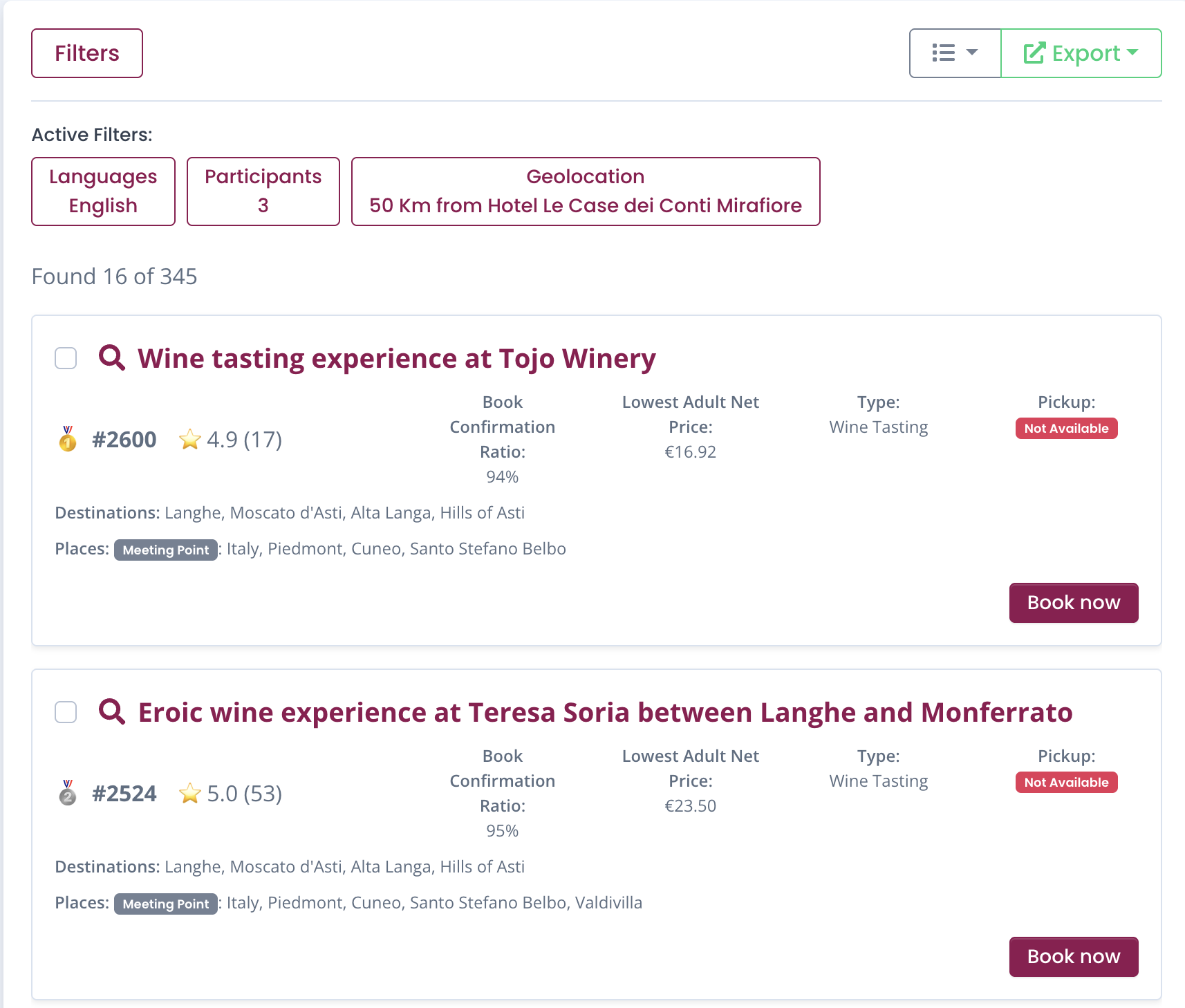
We'll talk about the details of the experiences in another specific section, but here it's important to underline that you can always
see the recap of the filters you used under the voice "active filters".
If you need to change something within this search you can go back on Filters and add them. If you need to restart from scratch, you can click on Filters and proceed to "clear filters".
NO results from filters
No results? Try adjusting the filters or contact your Account Manager for a tailored solution.

From filters to the experiences
After you've set the right filters you can apply them.
Once you've applied, you'll be able to see results and look at the experiences.
Follow the instructions!