Manage all your wine tourism operations from a single, centralized interface.
Here you will learn how to read and manage your bookings through our dashboard.
Manage bookings
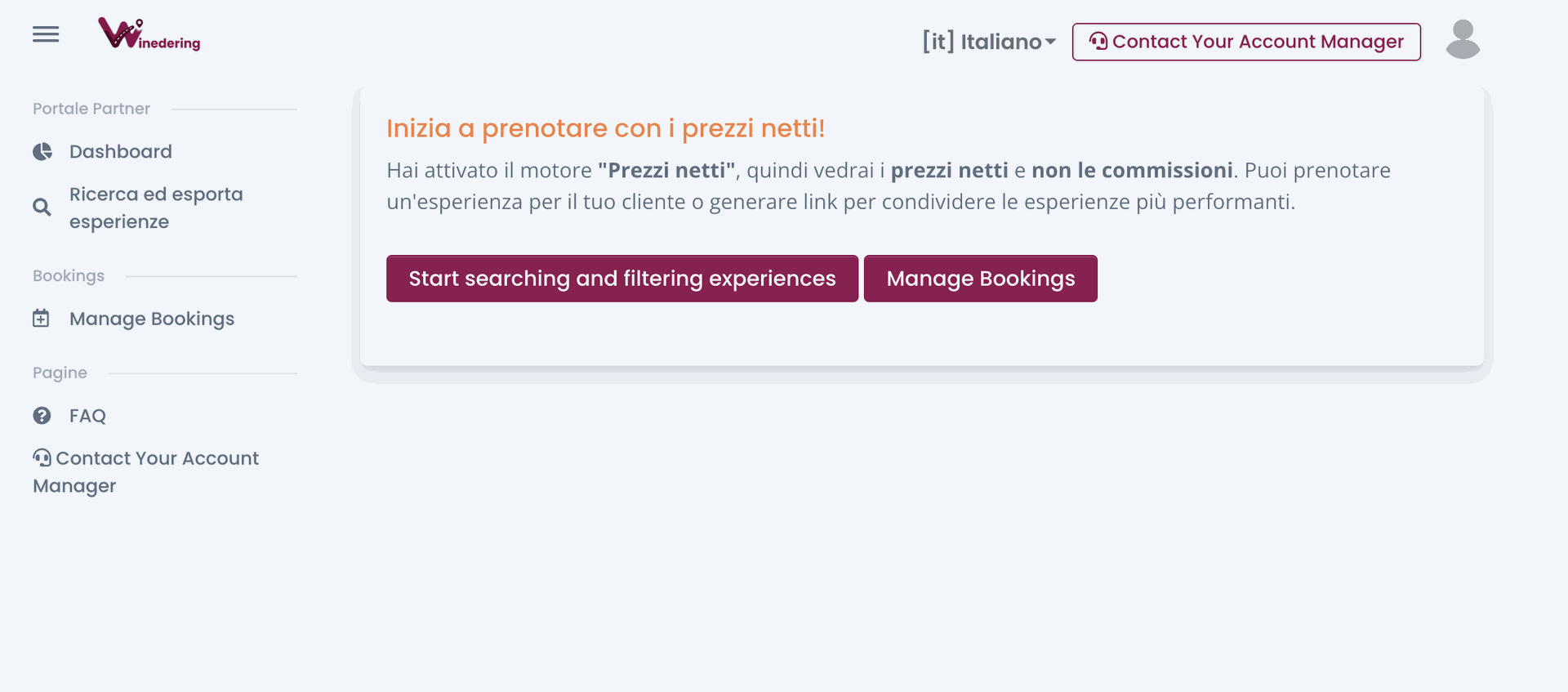
You can manage all your food and wine experiences bookings within one single system. You can find the "manage bookings" button both in the homepage of the portal.winedering website and on the left handside bar of the platform.
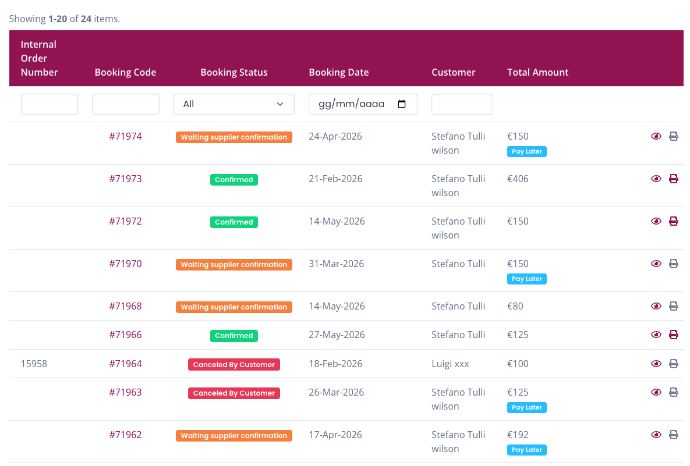
When you open the manage bookings button this is what you'll see:
Internal Order Number: this is your internal booking id.
Booking id: booking details id
Reservation Status: this is the status of the reservation
Booking reservation date: date of the booking
Customer: name of the customer
Total Amount: if the booking is a "Book now pay later" reservation, you'll see the details of "pay later" under the amount
On the right of each line you'll see an "eye" button that allows you to reopen all the details of that specific booking and a "Print" button; this is only clickable by travel professionals with the commission system rate as they'll be able to print the pdf to be sent to the customer.
Booking recap
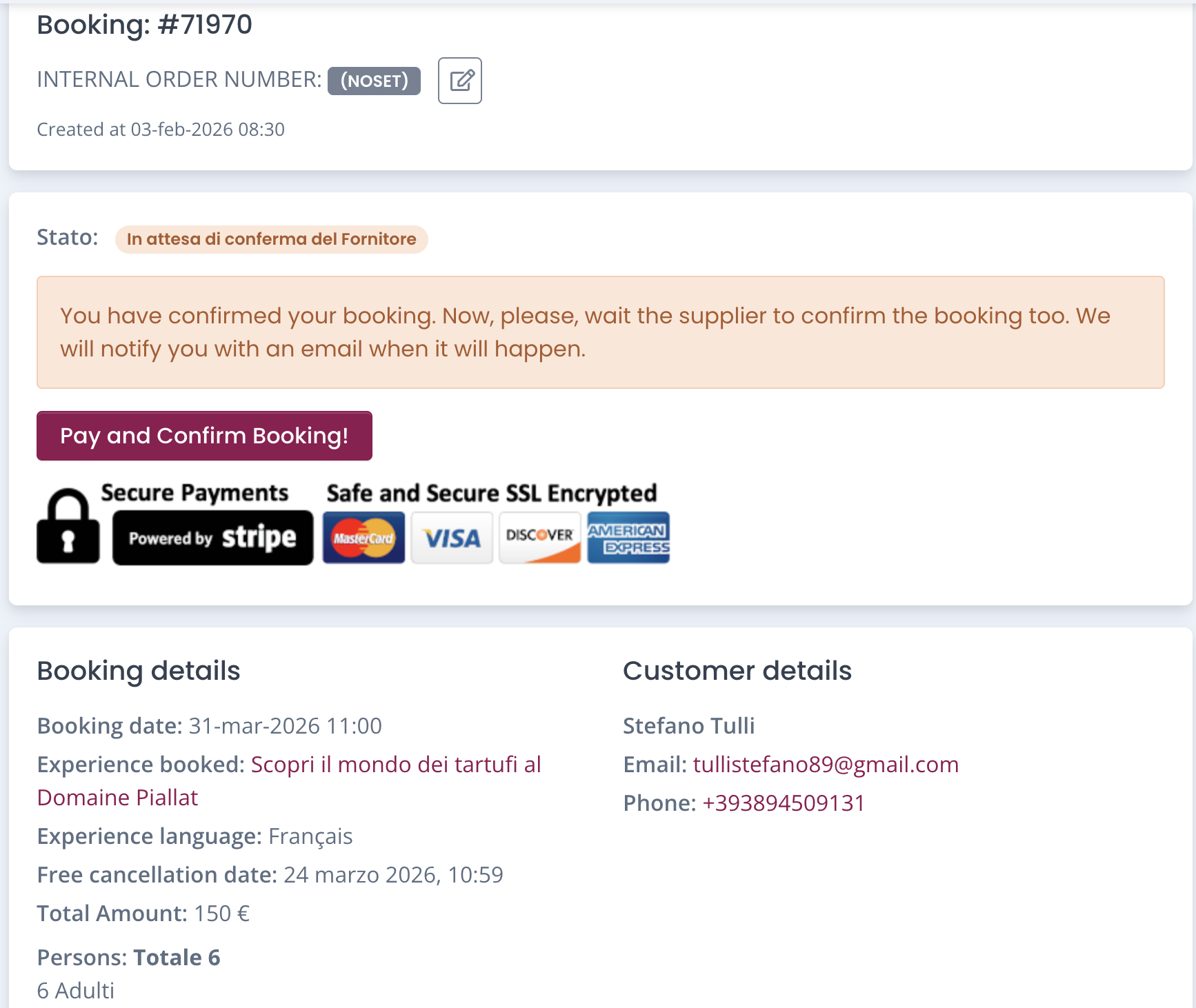
When you book an experience and pre-authorize payment with the credit card, the booking moves into one of the following stages: "Waiting for supplier confirmation" or "Confirmed". In both cases you'll be able to res the following recap of the booking
-
Booking ID: the winedering booking ID
-
Internal Order Number: this is your internal booking id; you can modify it whenever you want
-
Created at: date of creation of the booking
-
Status
-
Booking details: here you find the whole recap of the details you inserted for the booking
-
Experience booked: details and link of the experience
-
Experience language
-
Free cancellation date: this is the time limit to cancel the experience for free
-
Total amount: how much you've spent
-
Persons: number of participants
-
Customer details: here you can see all the details you inserted related to the customer.
Cancellation policy status
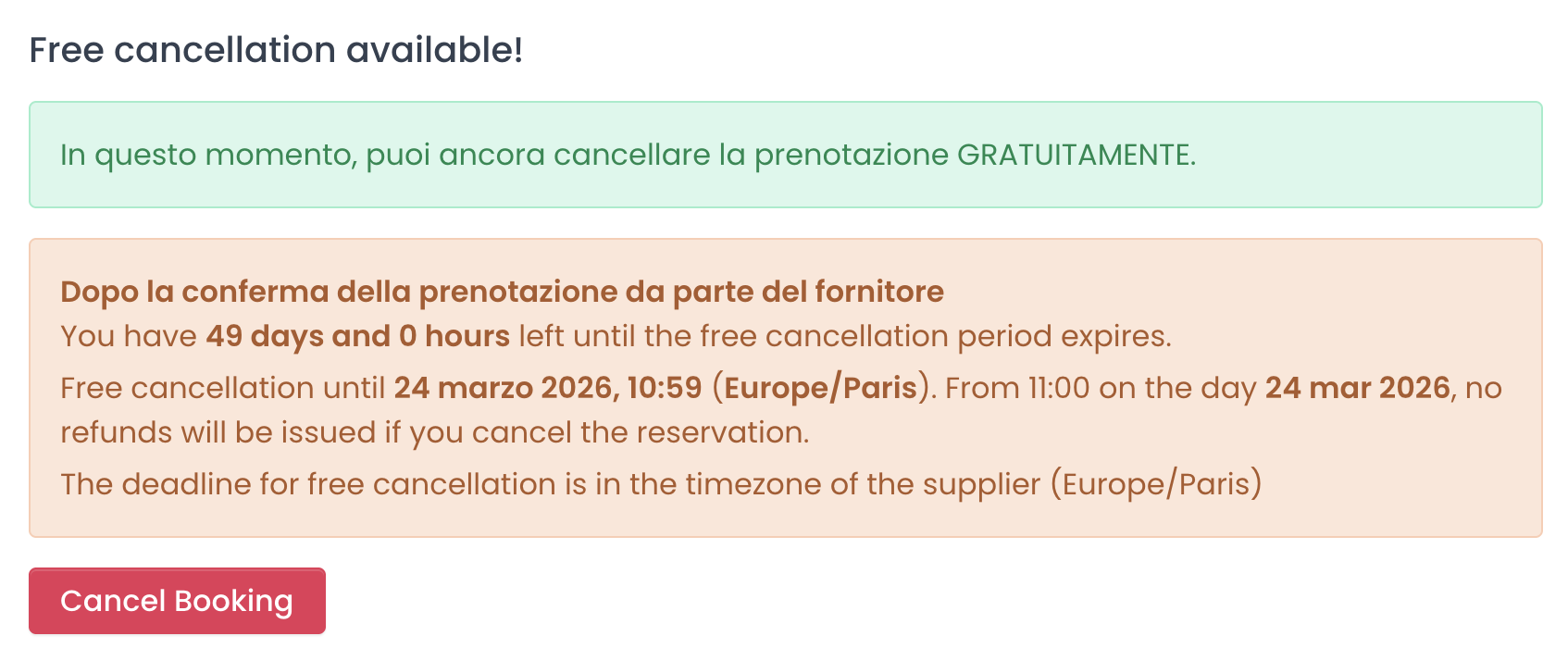
Under the booking recap you can also find the details of the cancellation policy for that specific experience. You can also find the "Cancel booking" button if needed.
Conditions
In this area you can find the specific requirements by the supplier related to that experience. This may apply to clothes, dressing or pet policy.