How to connect Holidoit Business to Winedering
What is synchronized
- Availability: dates, times and free places come from Holidoit Business. You manage the calendar of the connected experience only on Holidoit Business.
- Bookings: every booking made on Winedering is created on Holidoit Business, with the reference WD- followed by the Winedering booking number, the name, email and phone of the customer and the notes of the booking.
- Prices: they are not synchronized. Customers pay the prices of your Winedering calendar, and that is the amount of the booking on Holidoit Business too. If you change a price on Holidoit Business, tell us, so that we change it on Winedering.
- Currency: only experiences with prices in euro can be connected to Holidoit Business.
Before you start
Before proceeding
The experience you want to connect must be ONLINE on Winedering, with its prices in euro.
Ask Holidoit to enable Winedering as a sales channel for your products. Then write to us at supplier-support@winedering.com that Holidoit has enabled you: we link your Holidoit Business account to your Winedering account, and you do not need any code or password.
Until your account is linked, the connection page tells you so and shows no product. Once it is linked, follow the steps below.
How to connect your experience
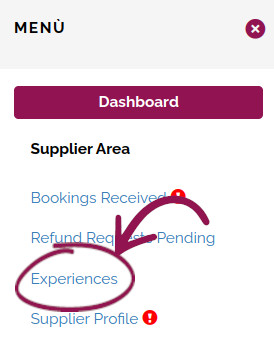
Log in to your Winedering supplier area and click on Experiences in the left menu.
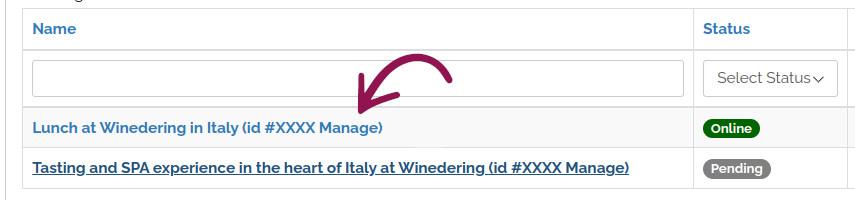
In the list, click on the name of the experience you want to connect.
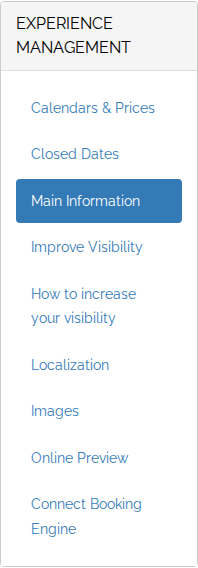
In the left menu of the experience, click on Connect Booking Engine.
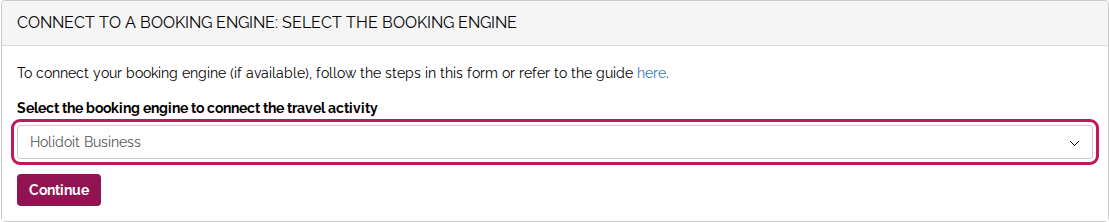
Select Holidoit Business and click on Continue.
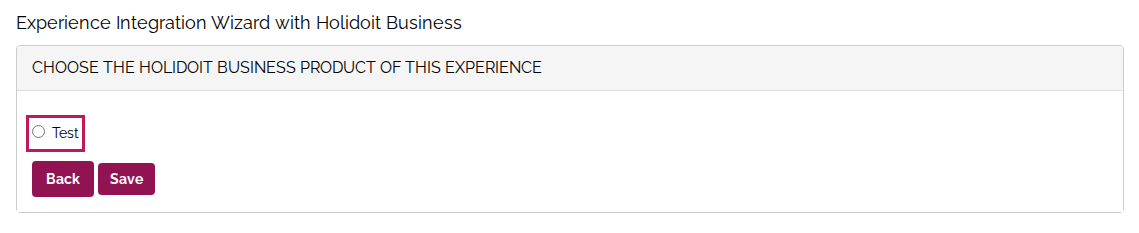
The page lists the products that Holidoit Business shares with Winedering for your account. Choose the product of this experience and click on Save.
Holidoit enables each product for Winedering one by one. If a product is not in the list, for example a tour you created after Holidoit enabled you, ask Holidoit to enable it for Winedering too, then come back to this page: you do not need to write to us.
Match the prices
On the next page, each row is an option of the Holidoit Business product with one of its participant types. For each row, choose the Winedering price it corresponds to in Select Related Price Type, tick the languages in which you offer it, and click on Save.
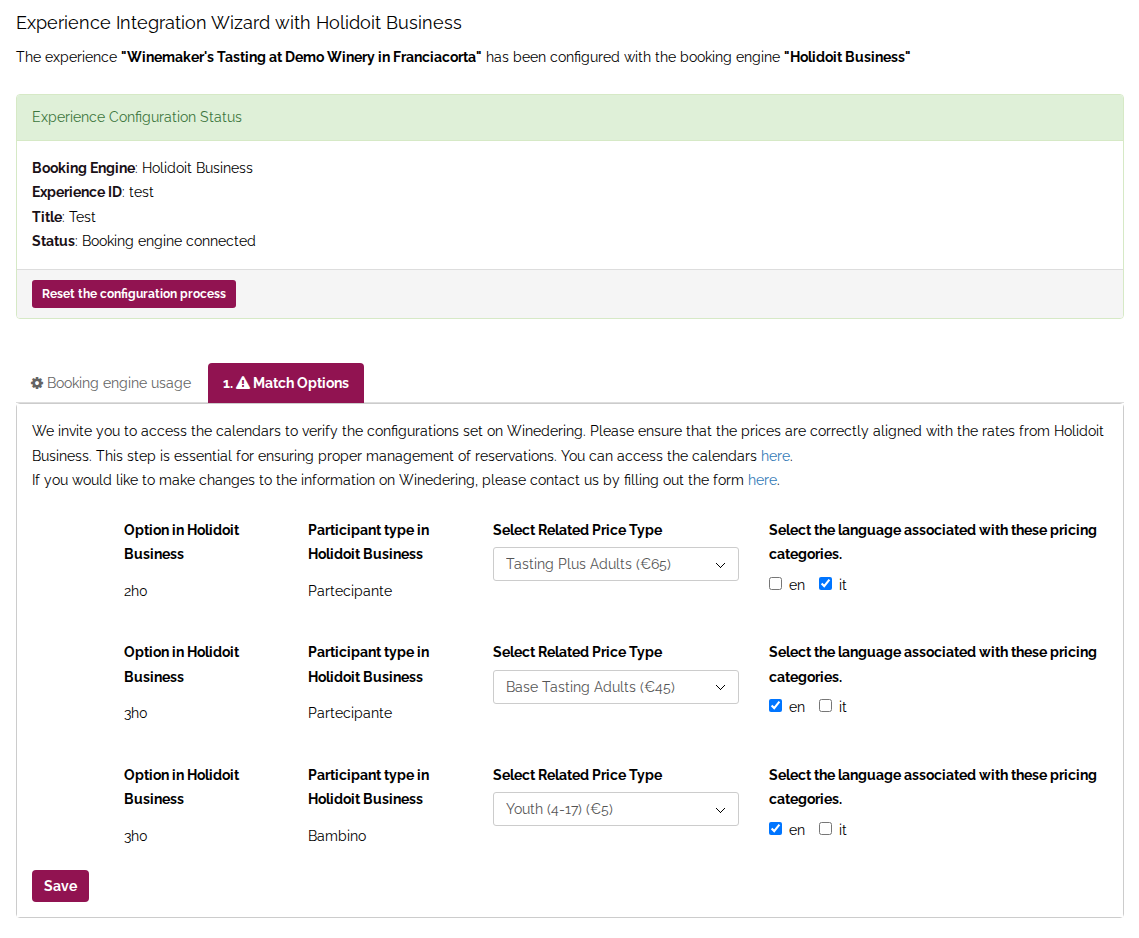
As soon as at least the adult price is matched, with its languages, the page confirms that the connection is active: from that moment the availability of the experience comes from Holidoit Business. Customers see only the prices you matched, in the languages you ticked.
One option per booking
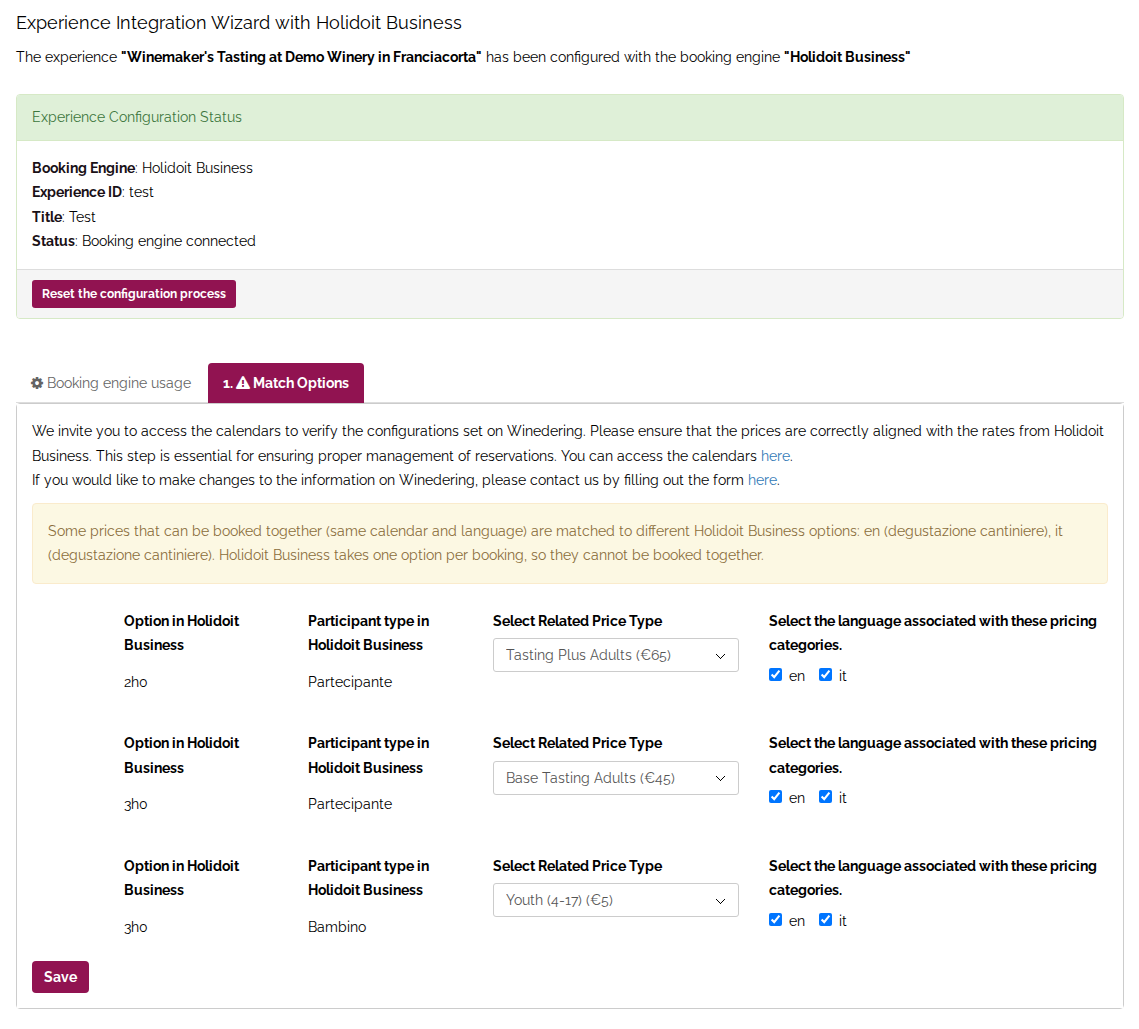
Holidoit Business takes one option per booking. If two prices that a customer can book together (same calendar and same language) are matched to different options, they cannot be booked together, and the page shows a yellow warning. Match the prices booked together, such as adults and children, to the same option.
If your calendars on Winedering do not match your product on Holidoit Business, write to us at help@winedering.com before matching the prices, with the details to update: we update them, then you match the prices.
How to check the connection
In your list of experiences, a connected experience has the Holidoit Business badge next to its name.

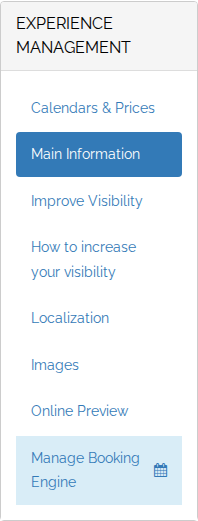
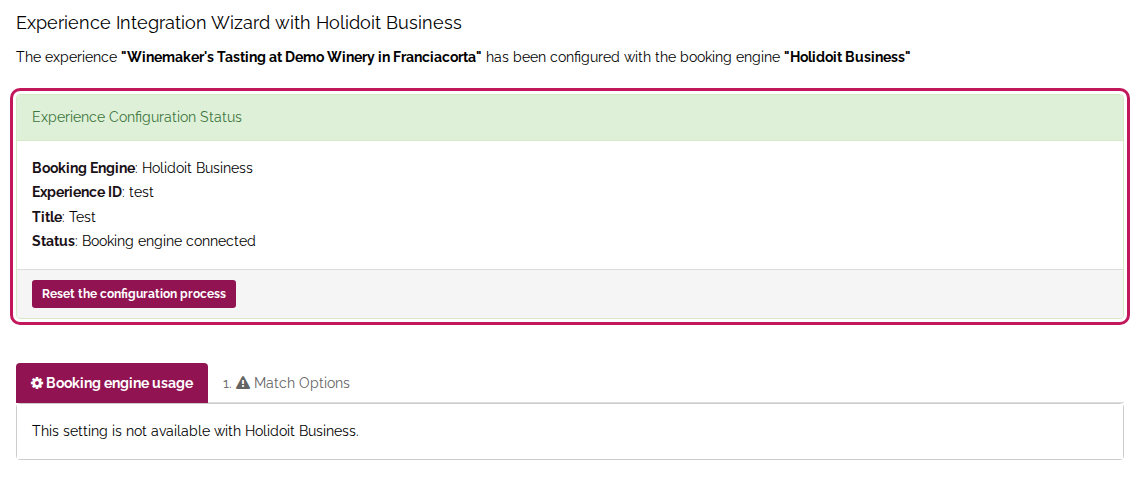
For the details, open the experience and click on Manage Booking Engine in the left menu.
The page shows the product and the status of the connection. With Holidoit Business, bookings always go to Holidoit Business: the option to use the booking engine only to show availability is not available.
How to manage bookings
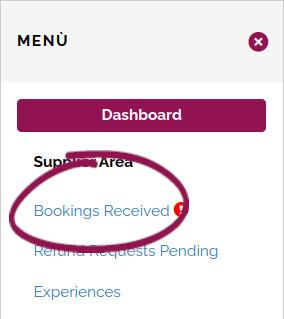
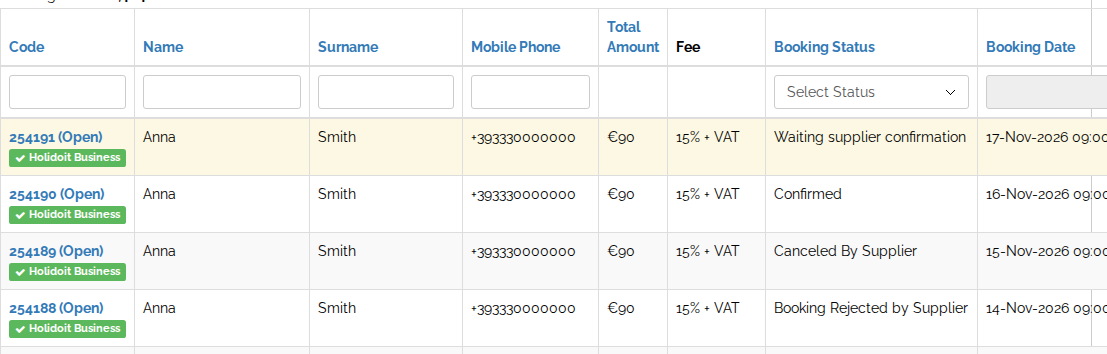
You find the bookings in Bookings Received, with the Holidoit Business badge. Winedering sends you an email for each booking, as for any other booking.
Instant booking or on request
If the experience is bookable instantly on Winedering, the booking arrives on Holidoit Business already confirmed. If it is on request, it arrives on Holidoit Business as pending and holds the places, and you answer it on Winedering: Holidoit Business has no button to accept or refuse the bookings that come from Winedering.
Accept or reject a request
Open the booking. To accept it, tick the box confirming that you will deliver the experience as booked and that you accept the Supplier Terms, then click on Confirm: the booking is confirmed on Holidoit Business too, and the customer receives the confirmation.
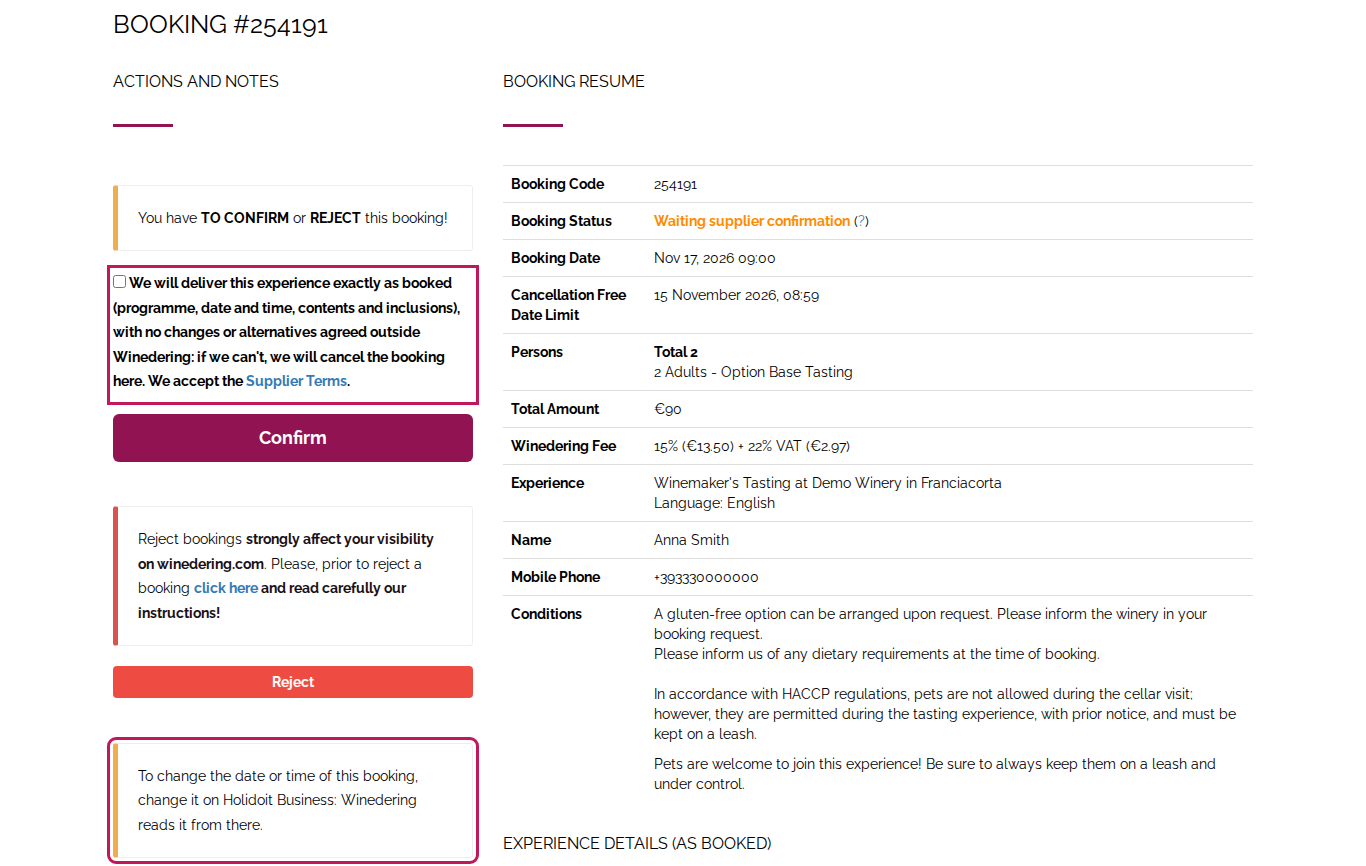
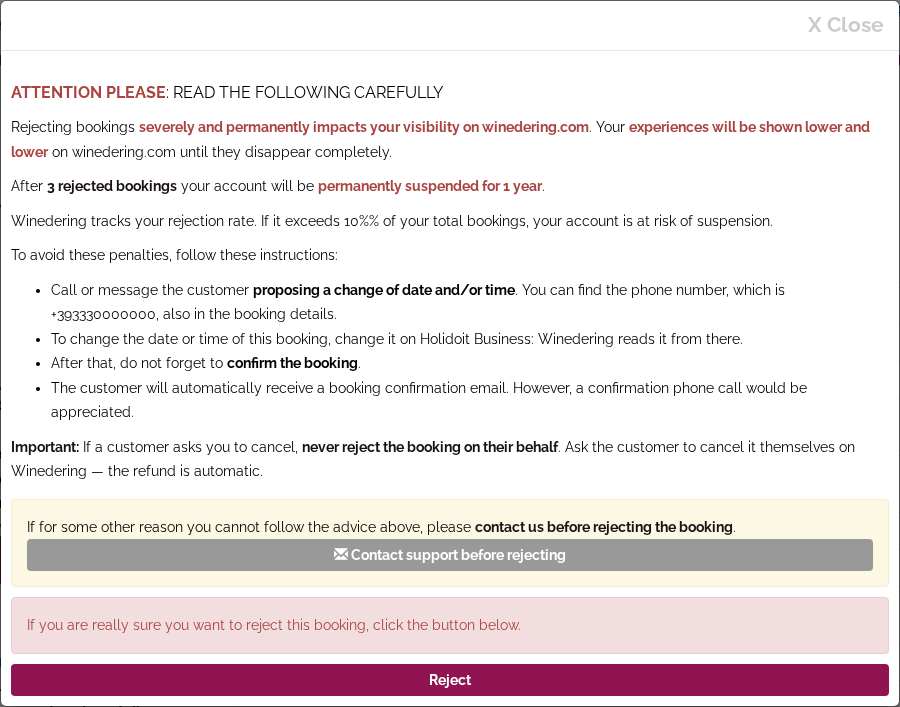
To refuse it, click on Reject and read the window that opens: rejected bookings lower the visibility of your experiences. If the date does not suit you, do not reject: agree on another one with the customer and change it on Holidoit Business, as explained below. A rejected booking is cancelled on Holidoit Business too, and the customer is refunded.
Answer within 48 hours
A request that you do not answer within 48 hours is rejected automatically: it is cancelled on Holidoit Business too, and the customer is refunded.
Change the date or time
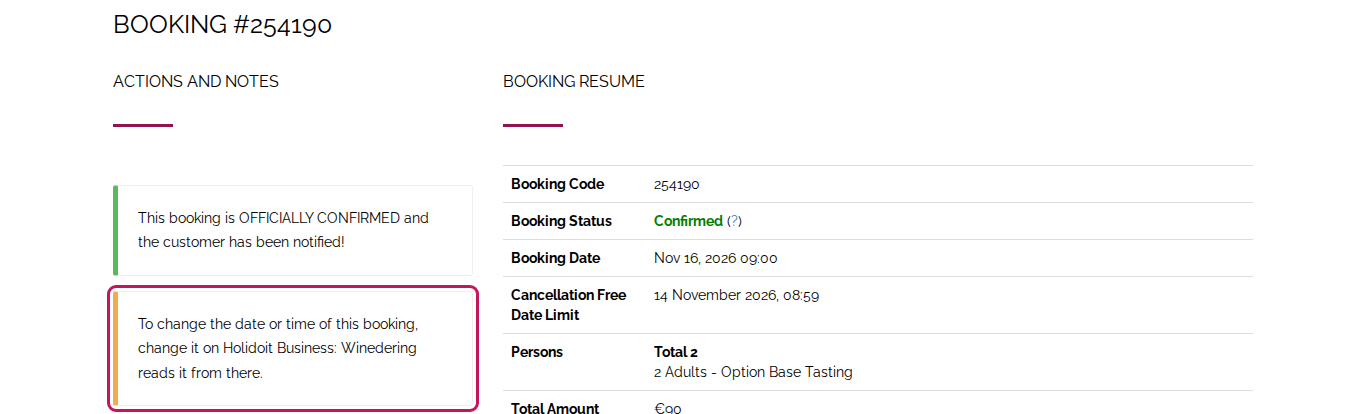
First agree on the new date and time with the customer. Then change the booking on Holidoit Business: Winedering reads the new date and time from there and informs the customer. On Winedering the date of these bookings cannot be changed, and the booking page says so.
Cancel a confirmed booking
If you cannot deliver a confirmed booking, open it and click on Cancel Booking. The booking is cancelled on Holidoit Business too and the customer is refunded in full, but the Winedering fee is charged anyway.
If you cancel the booking on Holidoit Business instead, Winedering notices it within about an hour for a booking in the next 30 days, and by the next morning for one further ahead. We then cancel it on Winedering too, inform the customer and refund them, as if you had clicked on Cancel Booking.
Number of participants
A change of the number of participants made on Holidoit Business does not reach Winedering. If a customer asks you for it, write to us at help@winedering.com before changing anything.
Emails to the customer
Winedering informs the customer of every confirmation, rejection, cancellation and change of date: you do not need to send emails to the customer from Holidoit Business.
If the experience cannot be booked
If a connected experience cannot be booked (Holidoit Business has no dates for it, its prices are not matched, or we can no longer read the product), we send you an email and show a red notice in your supplier area. What to do in each case:
How to disconnect the experience
Before disconnecting
Once disconnected, the experience is booked with the calendar and the prices it has on Winedering: check them first. If the experience has upcoming bookings, write to us at help@winedering.com before disconnecting it.
Open the experience, click on Manage Booking Engine in the left menu, then on Reset the configuration process.